How do I keep up with all the Brightwheel updates from my kid's daycare?
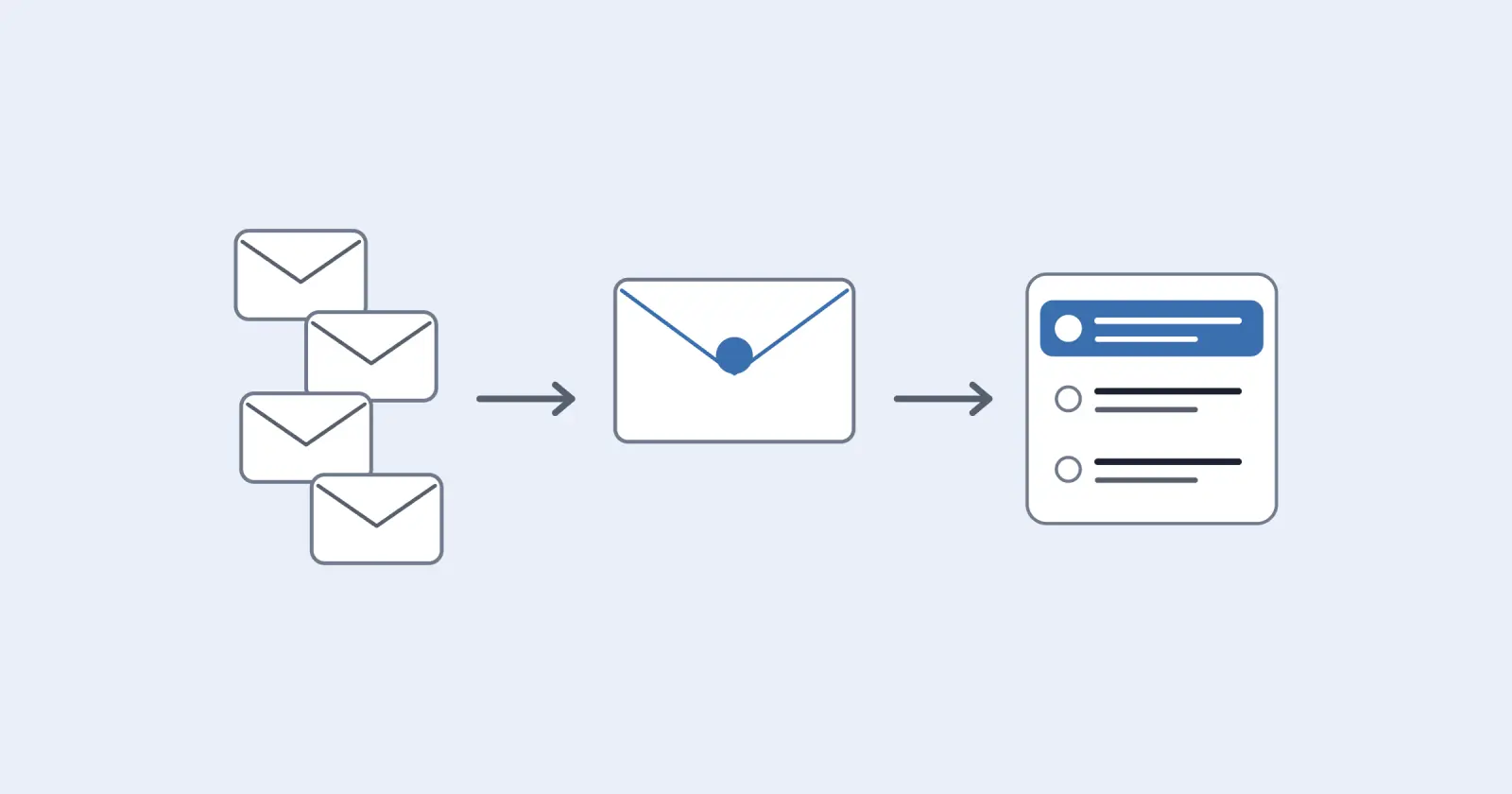
Treat Brightwheel messages as your to-do list and turn on each child's Daily Report Email.
Brightwheel messages (closures, supply asks, forms, events) arrive in the Brightwheel app, and urgent alerts can also come by text. They're easy to lose among the photos and nap updates. Treat the messages as your to-do list, and turn on the Daily Report Email for each child so the day's summary also lands in your inbox.
For a Brightwheel message, take a screenshot and share it to Daywell from your phone, or add it in Daywell on the web.
What to do
- Turn on the Daily Report Email. In the Brightwheel app, tap the three lines at the top left, then Edit Profile, scroll to Send Daily Report Email, switch it on for each child and tap Save. On the web: My Profile, then Send Daily Report Email, Edit, Yes, Save. It goes to the email on your account and arrives when your child is checked out.
- Treat Brightwheel messages as your inbox. When one has a date or an ask (bring, sign or pay), act on it or write it down the same day. If your daycare uses urgent alerts, they can also arrive as a text message once your phone number is verified.
- Put closures and early pick-ups on the calendar right away. They're the costly ones to miss, and the hardest to find again later.
- Open what's attached. Brightwheel messages can carry files and pictures, and a form or flyer attached to a message often carries the real ask.
How Daywell helps
Daywell, the family prep assistant, turns the Brightwheel messages you share into one list of what to have ready. When a message has a date or an ask, take a screenshot of it and share it to Daywell. Daywell reads it and lists which child it's for and what to bring, sign or pay, like "Ellie: diapers and wipes, Monday". On the Android app, one quiet reminder comes each morning, at a time you pick. Invite a partner and you both see the same list.
Questions parents ask
How do I get Brightwheel messages into Daywell?
Screenshot the message and share it to Daywell.
Share the ones that matter. Daywell doesn't read the Brightwheel app, so it sees the messages you share. Take a screenshot of the message, then share it to Daywell from your phone, or add it in Daywell on the web. Daywell lists what it asks for.
Does the Daily Report include messages?
No, only activities on your child's feed.
No. The Daily Report covers the activities on your child's feed. Messages and paperwork aren't in it, so keep reading your Brightwheel messages.
Why didn't I get a Daily Report today?
No check-out recorded, or no email on the account.
Brightwheel sends it when your child is checked out. If no check-out was recorded, or there's no email on your Brightwheel account, no report is sent.
A message has a form or a flyer attached. How do I add it?
Screenshot it or share the PDF to Daywell.
Take a screenshot of it, or share the PDF if you have one, to Daywell from your phone, or add it in Daywell on the web. Daywell reads it and lists what it asks for.
How do I get Daywell?
Start on the web.
Daywell is on the web. Start at getdaywell.com. It reads your school and activity email and tells you what your kids need ready.
I don't use Gmail. Can I still use Daywell?
Yes, forward them from any inbox.
Yes. From any inbox, forward school emails to your own Daywell address, one at a time or automatically. Brightwheel messages work the same either way: share them to Daywell.
Does Daywell read all of my email?
No. It starts with who it's from and the subject.
No. It looks only at who each email is from and its subject, and skips what Gmail files under Promotions, Social and Forums. It opens the ones it judges to be from school, daycare or activities. If it can't tell from the sender and subject, it opens that one too rather than risk missing it. The privacy policy explains what is kept and for how long.
Sources
- Brightwheel Help: Subscribe for daily updates on your child's activities
- Brightwheel Help: Types of messages to send
- Daywell privacy policy
Checked by James Boone, Daywell, 15 Oct 2026